Postman Installation
What is Postman?
Postman is an API development and testing tool that simplifies sending requests and receiving responses, making it easier to interact with and test APIs. It provides a user-friendly interface for creating, testing, and documenting APIs without needing to write code manually.
How to Install Postman
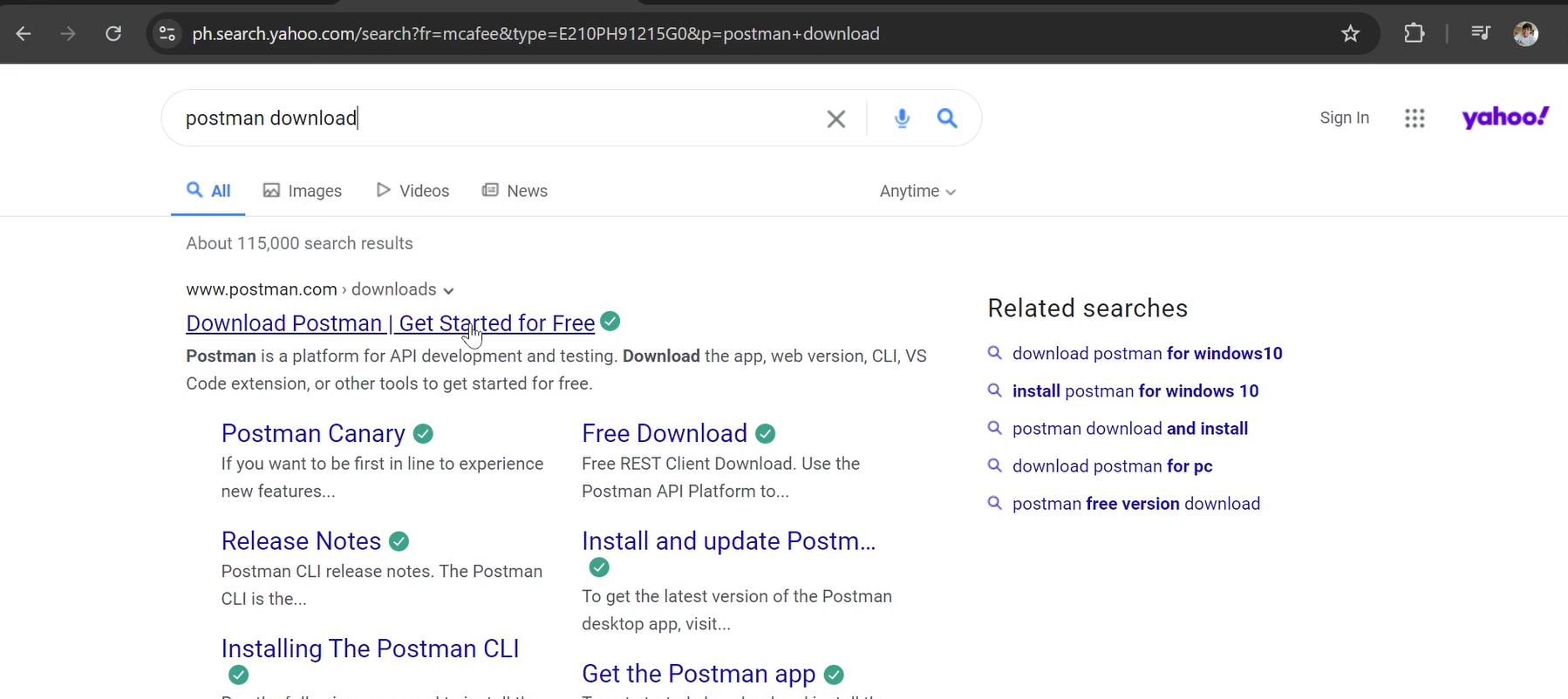
Step 1: Search “Postman Download“ and click the site www.postman.com
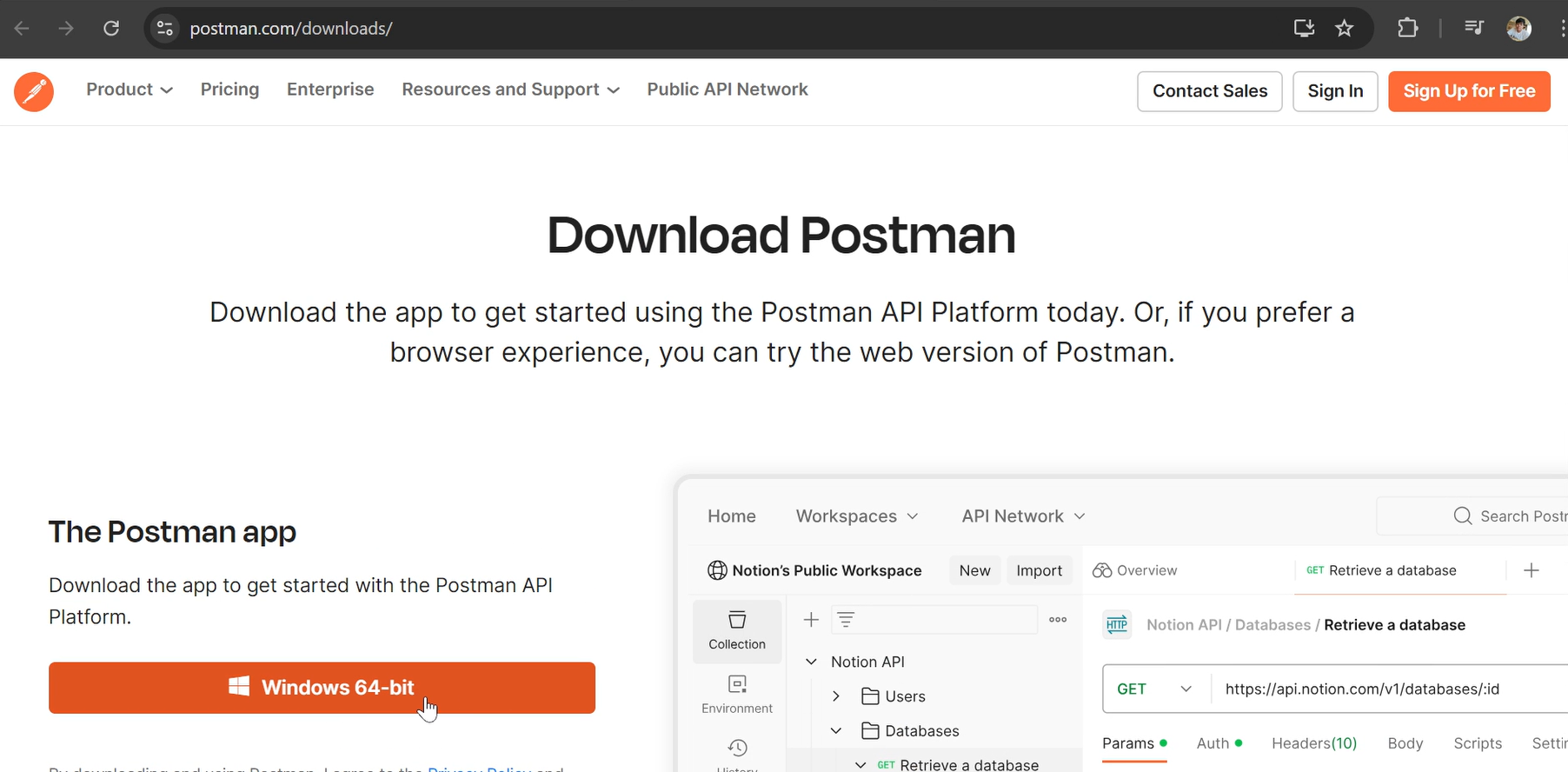
Step 2: Click the Windows 64-bit but it depends on what Operating System you are using
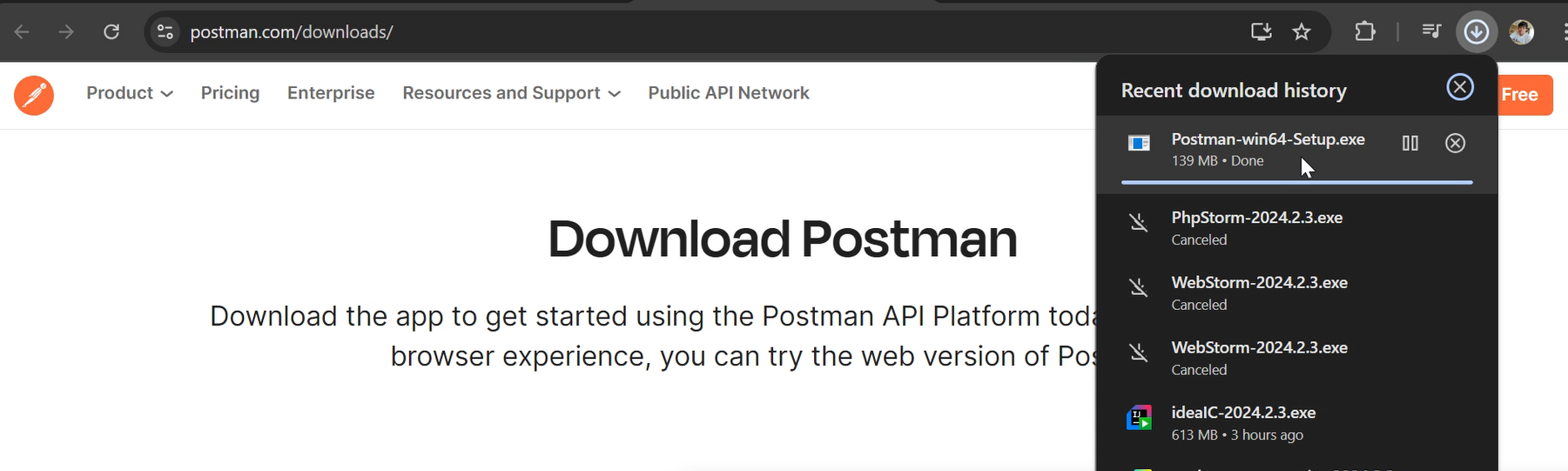
Step 3: After downloading, click the downloaded file and the installation will start
Step 4: After it is installed, open the application and create free account
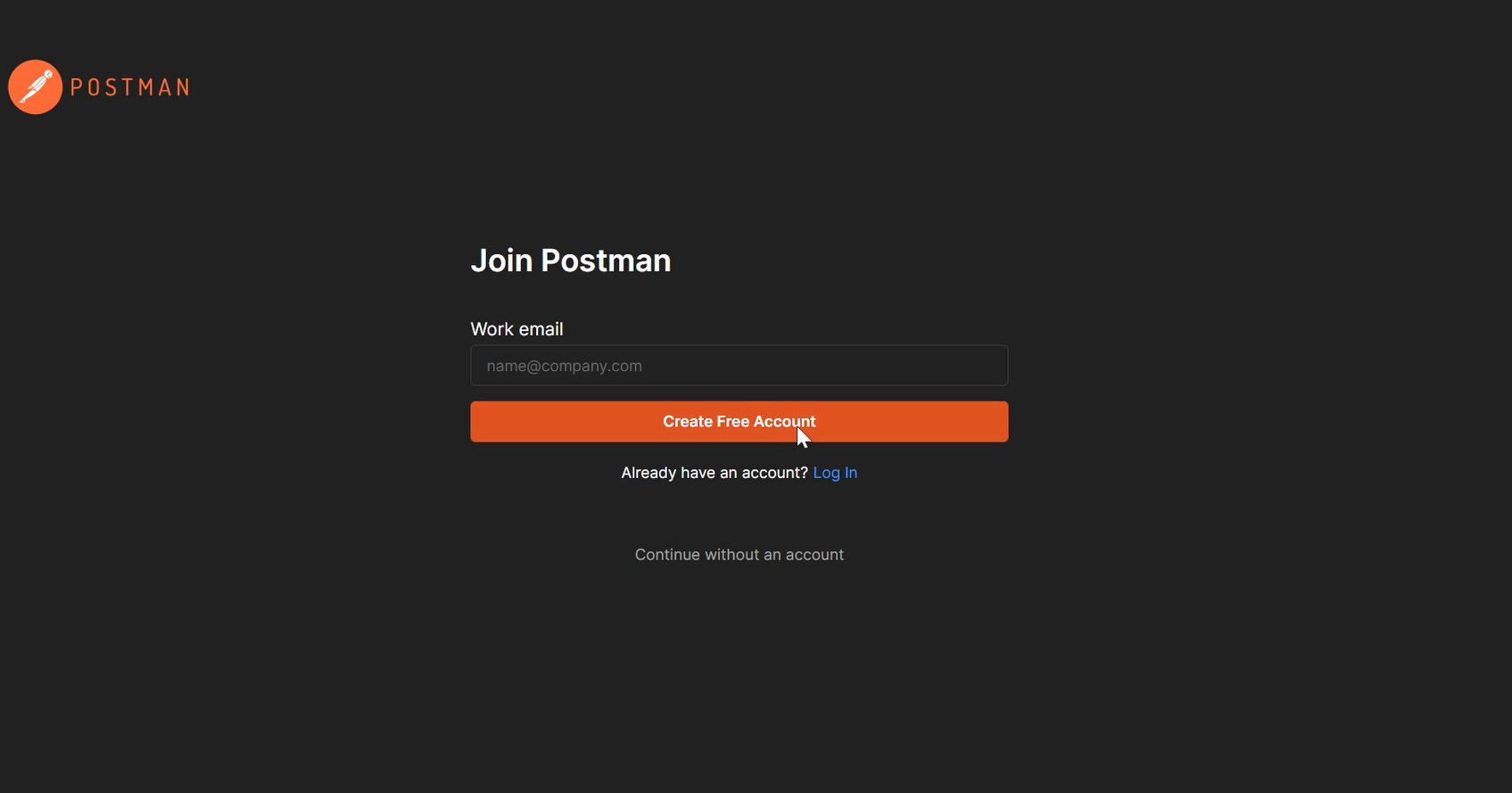
Step 5: Installation Done!
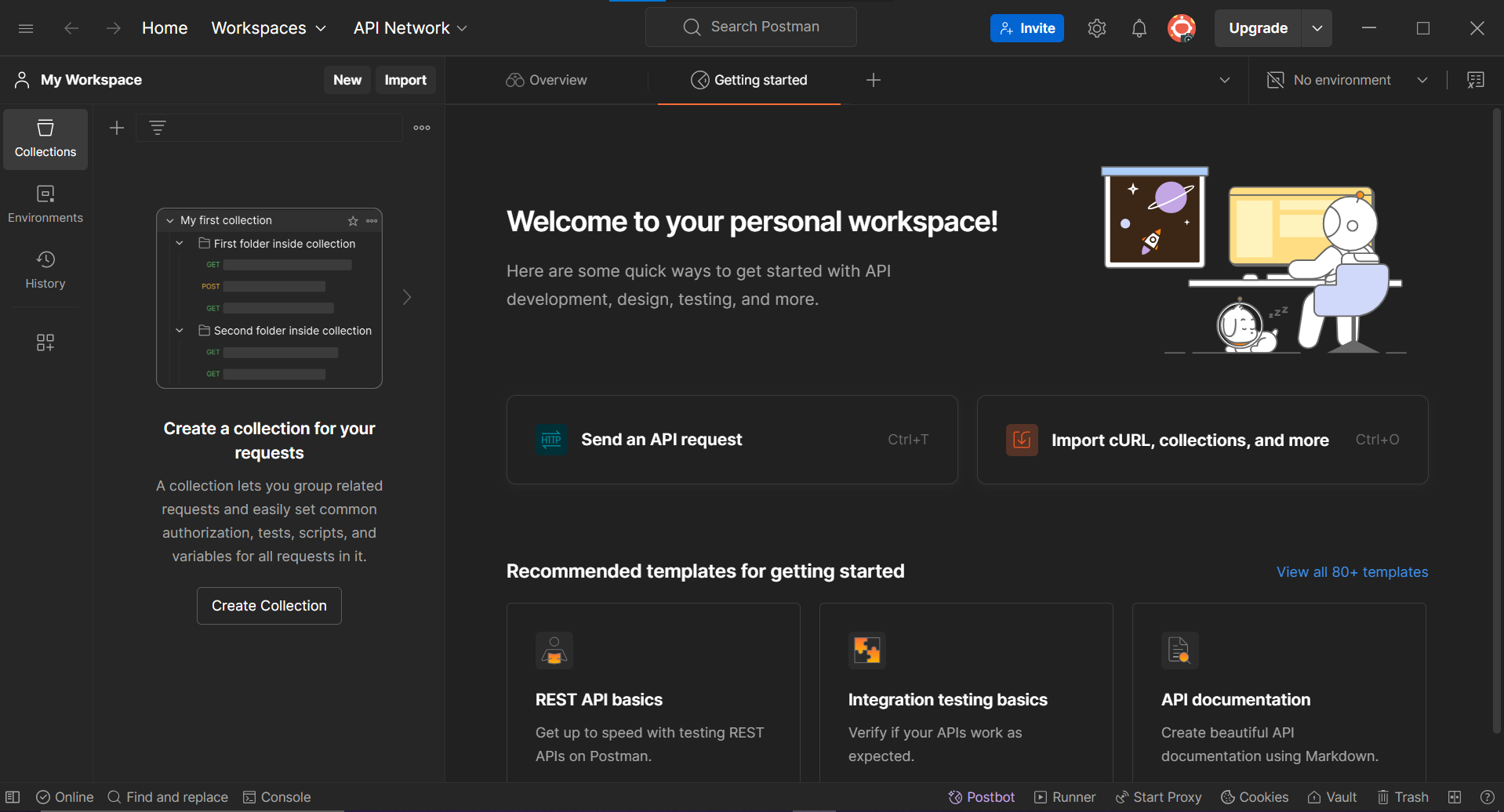
Here are definitions for the four HTTP methods and How to use them
GET
The GET method is used to retrieve data from a server. It requests data from a specific resource (like a web page or API endpoint) and does not modify anything on the server.
POST
The POST method is used to send data to a server to create a new resource. This method submits data, often in the form of JSON, and the server processes it, typically resulting in a new entry in a database.
PUT
The PUT method is used to update an existing resource on the server. It sends data to modify an existing resource identified by the URL, replacing it with the new data provided.
DELETE
The DELETE method is used to remove a resource from the server. When invoked, it tells the server to delete the specified resource identified by the URL.
How to use them?
IN GET METHOD
Open Postman: Launch Postman and make sure you're on the "Request" tab.
Select GET Method: From the method dropdown (left of the URL bar), select GET.
Enter the URL: Type the API endpoint (URL) you want to retrieve data from in the URL field.
Send the Request: Click the Send button. Postman will make the request and display the server's response below.
IN POST METHOD
(Create a new resource):
Open Postman: Launch Postman and go to the "Request" tab.
Select POST Method: From the method dropdown, select POST.
Enter the URL: Type the API endpoint (URL) where you want to create a new resource.
Add Request Body: Go to the Body tab, select raw, choose JSON from the dropdown, and enter the data you want to send (e.g.,
{ "name": "John", "age": 30 }).Send the Request: Click Send. The server will create the resource, and you'll see a confirmation response (like status 201 for created).
IN PUT METHOD
(Update an existing resource):
Open Postman: Launch Postman and go to the "Request" tab.
Select PUT Method: From the method dropdown, select PUT.
Enter the URL: Type the API endpoint (URL) of the resource you want to update.
Add Request Body: Go to the Body tab, select raw, choose JSON, and input the updated data (e.g.,
{ "name": "John", "age": 35 }).Send the Request: Click Send. The server will update the resource, and you'll see a response confirming the update (like status 200 for success).
IN DELETE METHOD
(Remove an existing resource):
Open Postman: Launch Postman and go to the "Request" tab.
Select DELETE Method: From the method dropdown, select DELETE.
Enter the URL: Type the API endpoint (URL) of the resource you want to delete.
Send the Request: Click Send. The server will delete the resource, and you'll see a response confirming the deletion (like status 200 for success or 204 for no content).
Comments
Join the discussionNo comments yet. Be the first to comment.


